Generating Contour Meshes from ROIs
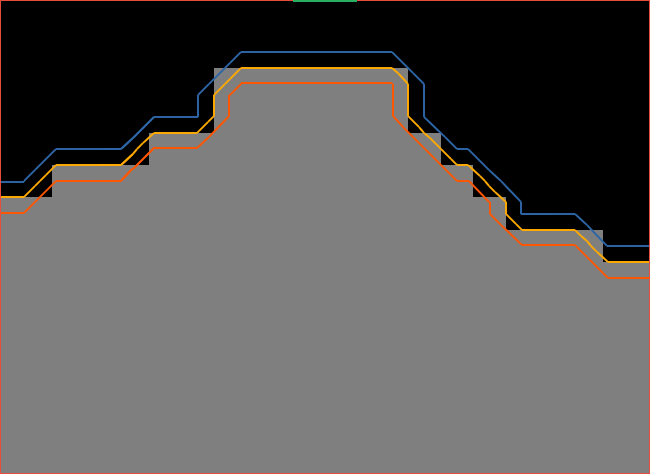
You can generate contour meshes that describe the surface of a region of interest in the Generate Contour Mesh panel. In the example below, three contour meshes with different threshold values (minimum in blue, mid in yellow, and maximum in orange) were generated from a region of interest.
Contour meshes generated at different thresholds
The settings for generating contour meshes are available in the Generate Contour Mesh panel. Right-click the required region of interest in the Data Properties and Settings panel and then choose 3D Modeling > Generate Contour Mesh to access the panel, shown below.
Generate Contour Mesh panel
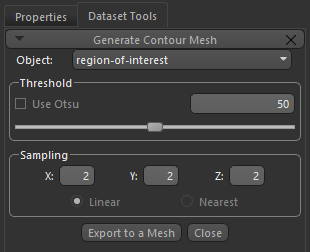
The following options are available for generating contour meshes.
| Description | |
|---|---|
| Object | Indicates the currently selected region of interest. If required, you can select another object in the drop-down menu to generate additional contour meshes. |
| Threshold |
Determines the threshold value that will be used to generate the contour mesh.
Note The threshold values for a region of interest range from 0 to 100. The mesh will be placed directly on the border of the ROI at a threshold value of 50, inside the ROI at threshold values greater than 50, and outside the ROI at threshold values less than 50. You should also note that the maximum padding is a distance of 4 voxels in all directions. |
| Sampling | Determines the sampling rate that will be applied along each axis and the sampling algorithm. At a setting of 4, one of every four pixels will be sampled. Modifying the values for an axis or axes will generate a mesh representing more or less vertices. Each voxel value is analyzed when the sampling value is set at 1. |
 How to Generate a Contour Mesh from an ROI
- Right-click the required region of interest in the Data Properties and Settings panel and then choose 3D Modeling > Generate Contour Mesh in the pop-up menu.
The Generate Contour Mesh panel appears on the Dataset Tools tab.
- Do one of the following:
- Enter a threshold value in the Threshold edit box.
- Select a threshold value with the slider.
- Select a sampling rate, which determines how surfaces are tessellated or broken down logically into a series of small triangles or facets.
Each voxel value is analyzed when sampling value is set at 1. Setting the sampling rate at a higher value will produce results faster, but at a lower quality.
- Click the Export to a Mesh button.
The generated mesh is added to the Data Properties and Settings panel (see Mesh Properties and Settings for information about making a mesh visible in a scene and about the settings available in the lower section of the panel.
- Generate additional contour meshes, if required.
You can select different threshold values for the currently selected object, or choose to work with another object.
- Click the Close button to close the Generate Contour mesh panel.
